

TL;DR:
- NFC allows for instant and secure exchange of professional details with a simple tap.
- An NFC-enabled device, an NFC card or tag, and a selected app are required.
- Results are confirmed via notifications and cross-platform testing.
Are you losing professional contacts because you didn't have a card with you or because the card you gave out got lost in someone's wallet? This happens frequently at exhibitions, conferences, and business meetings. NFC (Near Field Communication) provides a solution: with a simple tap of two devices or a card against a mobile phone, your details are transferred instantly. In this guide, you will see exactly what you need, how the process works step-by-step, and how to verify that everything went well.
Table of Contents
- What you need for information exchange via NFC
- How the data exchange process works via NFC
- Common problems and how to address them
- What to expect and how to verify success
- Why NFC is changing networking for professionals
- Take networking to the next level with NFC cards
- Frequently asked questions
Key Takeaways
| Point | Details |
|---|---|
| Fast networking | NFC allows instant exchange of details in seconds with a single tap. |
| Simple and secure | No pairing or internet connection required for easy transfer of basic data. |
| Capacity limits | Ideal for small details like business cards, not for large files. |
| Device compatibility | Utilize NFC tags or cards that work on both Android and iOS with the correct protocols. |
What you need for information exchange via NFC
Having understood why NFC can change your networking, let's look at what you need in practice.
NFC is a short-range wireless communication standard that operates at 13.56 MHz. It requires no internet connection, pairing, or special code. Physical proximity of two compatible devices or a device with an NFC tag is sufficient.
To get started, you need the following:
- Smartphone with active NFC: Almost all Android phones from 2013 onwards feature NFC. On iPhones, NFC for tag reading is available from the iPhone 7 (iOS 11+) and for writing from the iPhone XS (iOS 13+).
- NFC card or tag: This can be an NFC business card (PVC or metal), a sticky tag, or an NFC keychain.
- Management app (optional): For writing data to a tag, use apps like NFC Tools (Android/iOS). For simple card reading, no app is needed on most Android devices.
The exchange of information via NFC relies primarily on NDEF (NFC Data Exchange Format), a standardized protocol that defines how data is stored and read on tags. NDEF supports vCard (contact), URI (link), text, and other types of records.
The basic specifications you should be aware of are: the ISO 14443 standard for tag/reader communication, storage capacity (128 bytes to 4 KB per tag), and NDEF compatibility for cross-platform functionality.
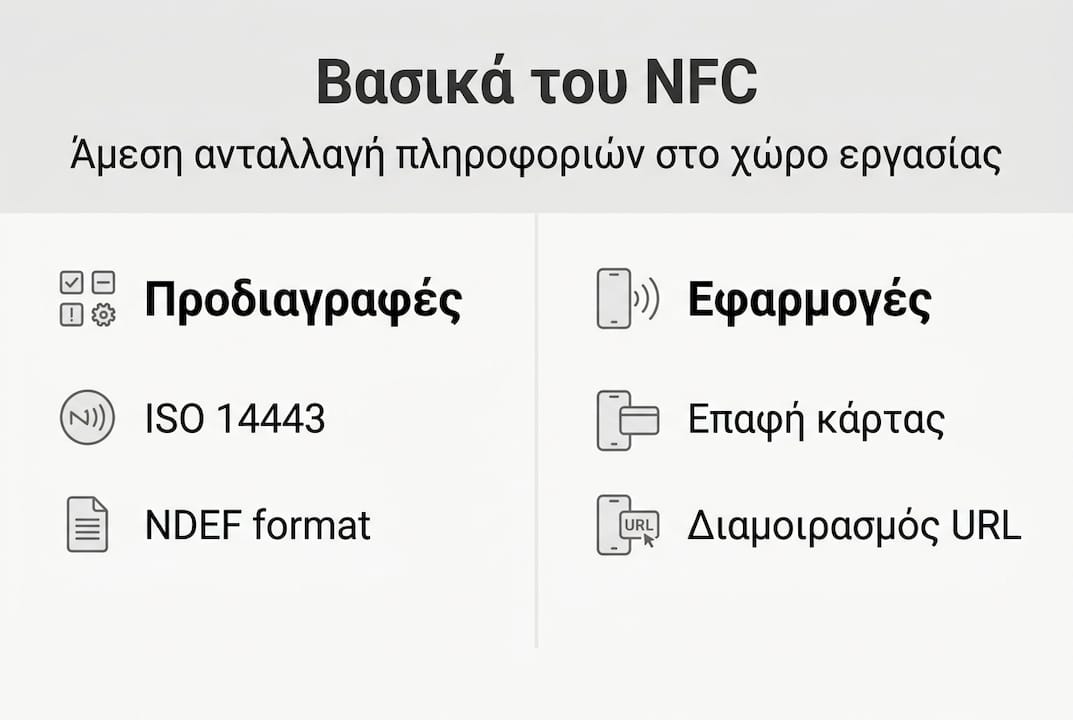
The table below shows the main hardware options and their differences:
| Type | Capacity | Rewritable | Ideal for |
|---|---|---|---|
| NFC PVC card | 504 bytes | Yes | Daily networking |
| NFC metal card | 504 bytes | Yes | Premium impression |
| NFC sticky tag | 144-888 bytes | Yes | Office, laptop |
| NFC keychain | 144-504 bytes | Yes | Portable use |
The choice depends on the usage. For professional networking, an NFC card is the most practical option, while tags suit fixed locations. If you want to understand the difference between NFC and paper cards, see the analysis on NFC vs paper cards.
How the data exchange process works via NFC
Once you have gathered the essentials, follow the basic steps below.
The process differs depending on whether you are using an NFC card/tag or performing device-to-device (P2P) exchange. Let's look at both cases.
Exchange via NFC card or tag:
- Enable NFC on your phone (Settings > Connected devices > NFC or equivalent menu per manufacturer).
- Unlock the phone — most smartphones do not read NFC tags with a locked screen.
- Bring the card or tag close to the back of the phone, near the NFC antenna area (usually centrally or at the top).
- Wait for the notification — a link, contact, or prompt for saving will appear automatically.
- Save or follow the link depending on the type of data registered on the tag.
Device-to-device (P2P) exchange:
On Android, the legacy Android Beam feature has been removed. Now, Nearby Share or third-party apps are used. On iOS, NameDrop (iOS 17+) allows contact exchange by bringing two iPhones close together, but it is not full NFC P2P. The P2P limitations on iOS and Android mean that the most reliable cross-platform solution remains an NFC card with a URL or vCard.
To write data to a tag, use an app like NFC Tools: select the record type (vCard or URL), enter your details, and write to the tag by bringing it close to the phone.

Professional tip: If you want cross-platform compatibility, write two NDEF records on the same tag: one vCard and one URI leading to your digital profile. This way, regardless of the operating system, the recipient receives useful information.
For practical tips regarding using NFC for networking and a complete NFC networking guide for professionals, there are comprehensive resources covering every use case. Additionally, the NFC technical specifications from the NFC Forum define the requirements for each device accurately.
Common problems and how to address them
Between the previous steps, obstacles may arise. Here is how to resolve them.
The most common problems professionals face when using NFC are:
- NFC disabled: The most common mistake. Always check the settings before every use.
- Locked screen: Most phones require an unlocked screen to read a tag. Solution: unlock before bringing it close.
- Old operating system: Android 4.4 and older or iOS 10 and older have limited or no support for NFC tags.
- Incorrect antenna position: The NFC antenna is not always in the center. On some models, it is at the top edge. Try different positions.
- Metal phone case: Metal cases can block the NFC signal. Remove the case or use a plastic one.
- Overloaded tag: NFC tags have limited capacity (up to about 4 KB), so large files or excessive data will not fit. The solution is to store only a URL that leads to a digital profile.
- Choosing a selection results in a full page refresh.
- Opens in a new window.