

Imagine you are at a conference, you meet a valuable professional contact, and you are desperately searching your bag for a paper card that you either don't have with you or has faded. Traditional cards get lost, forgotten, or simply don't convey enough information. NFC cards solve this problem: with one touch, you transfer all your details instantly to the other person's mobile. This guide covers materials, setup, usage, and best practices to make the most of NFC cards in your professional networking.
Table of contents
- Materials and preparation for NFC cards
- Creating and setting up the NFC card
- Usage and practical application in networking
- Verification, maintenance, and best practices
- The true value and future of networking with NFC cards
- Create your personal NFC card via TagTouch
- Frequently asked questions
Key Takeaways
| Point | Details |
|---|---|
| Right choice of materials | A durable NFC card with an NTAG chip ensures reliability and longevity. |
| Adding QR fallback | Combining NFC and QR ensures 100% compatibility with all devices. |
| Programming steps | The correct programming and testing process guarantees that your networking will be effective. |
| Best practices | Frequent profile updates and analytics tracking bring lasting benefits. |
Materials and preparation for NFC cards
Before you start, you need the right materials. Choosing the appropriate NFC chip is the first step. The most common chips for business cards are NTAG213, NTAG215, and NTAG216. According to the NFC business card creation guide, NTAG213/215/216 chips differ in their memory capacity and capabilities.
The NTAG213 stores up to 144 bytes of data, enough for a simple URL. The NTAG215 reaches 504 bytes, while the NTAG216 supports up to 888 bytes, suitable for complex applications. For most business cards that redirect to an online profile, the NTAG213 is perfectly sufficient.
| Material | Use | Note |
|---|---|---|
| NFC chip (NTAG213/215/216) | Store URL/data | Choose based on needs |
| PVC or metal card | Physical substrate | Durable, professional look |
| NFC-enabled device | Program the chip | iPhone 7+ or Android 2018+ |
| NFC App (e.g., NFC Tools) | Write data | Available for free |
| Online profile (URL) | Tap destination | Renewable and updatable |
Regarding card materials, the choice between PVC and metal impacts both durability and the impression you leave. PVC cards are lightweight and cost-effective. Metal cards provide a premium feel and last much longer. Both types support NFC chips without issue, provided the chip is not covered by metal that interferes with the signal.
Preparing your online profile is equally important. Create a page that includes your contact details, social media links, website, and any other information you want to share. The URL of this page is what you will store on the chip. Networking with NFC works best when your profile is always updated and accessible from mobile phones.
- Choose a URL that doesn't change often (e.g., TagTouch profile or personal page)
- Ensure the page loads quickly on mobile
- Include a "Save Contact" button for immediate use
- Check that the URL does not exceed the chip's capacity
Pro tip: Always choose an NTAG chip for reliability and one-tap functionality. Avoid chips that are not widely supported by mobile phones.
Creating and setting up the NFC card
After you have gathered the materials, it's time to program your card. The process is simpler than it seems. It involves purchasing the card, drafting the profile, and using an NFC app to record the data.
- Buy an NFC card. Choose a card with a built-in NTAG213 chip or higher. Check that the manufacturer specifies the chip type.
- Create an online profile. Use a platform like TagTouch to create a digital profile with all your details. Copy the URL.
- Enable NFC on your device. On Android: Settings > Connections > NFC. On iPhone 7+: NFC is active by default for reading, but you need an app for writing.
- Install an NFC app. NFC Tools (available for iOS and Android) is the most popular choice. Free, simple, reliable.
- Write URL to the chip. Open the app, select "Write" > "Add a record" > "URL/URI", enter your URL, and press "Write". Touch the phone to the card.
- Test on different devices. Verify that the card works on both iPhone and Android before using it for networking.
| Chip | Memory | Suitable for |
|---|---|---|
| NTAG213 | 144 bytes | Simple URLs, basic networking |
| NTAG215 | 504 bytes | Extended profiles, vCard |
| NTAG216 | 888 bytes | Complex applications, multiple data |
An important step that many skip is adding a QR fallback. Print or engrave a QR code with the same URL on the back of the card. This way, even if someone doesn't have NFC or doesn't know how to use the tap, they can scan the code. NFC card best practices suggest that the combination of NFC and QR maximizes coverage.
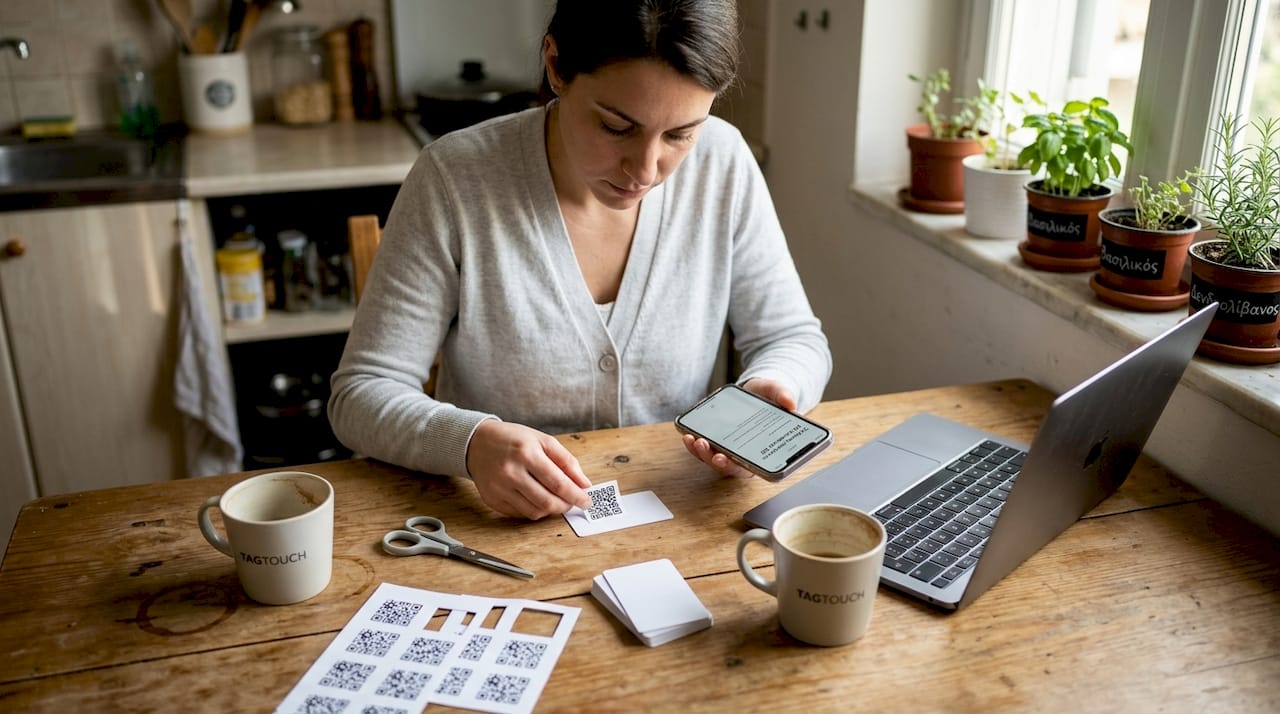
Also, pay attention to networking tips with NFC regarding platform choice. Avoid services that lock your data behind a subscription or don't allow you to change the URL later.
Pro tip: Before choosing a platform for your online profile, check if you can update the details without changing the URL. This saves you from having to reprogram the card.
Usage and practical application in networking
With your card ready, let's look at its use in practice. The physical use is simple: touch the card to the back of your interlocutor's phone, near the NFC reader (usually at the center or top for Android, at the top for iPhone). The contact takes less than a second.
According to data on NFC device compatibility, NFC works on iPhone 7+ and Android 2018+, covering 78-92% of devices on the market. With QR fallback, coverage reaches 100%.
An NFC tap takes less than 1 second. No traditional card can compete with this speed of information exchange.
Practical use cases:
- Conferences and exhibitions: You exchange details with dozens of contacts without needing paper. Your profile appears instantly on their screen.
- Business meetings: Instead of writing down emails or phone numbers, one tap sends all your information.
- Networking events: In crowded spaces, the speed of NFC allows you to make more contacts in less time.
- Follow-up after a meeting: Your online profile can be updated with new content after the meeting, without changing the card.
The advantages of hybrid NFC and QR are clear. The combination ensures that no one is left without access to your details. Analysis of NFC practices confirms that cards with QR backup have significantly higher successful exchange rates.
Common mistakes to avoid:
- NFC disabled: Always check that NFC is enabled on your device before every event.
- Wrong contact point: Different phone models have the NFC reader in different positions.
- Device without NFC: Older or budget phones might not support NFC. The QR code is the solution there.
- Metal phone case: Some cases interfere with the NFC signal. Advise the person to remove the case if the tap doesn't work.
The benefits of the TagTouch NFC card also include the ability to track your contacts via analytics, something paper cards can never offer.
Pro tip: Always check your card's NFC before any event. A quick tap on your own phone confirms that everything is working properly.
Verification, maintenance, and best practices
Concluding with practical use, it's worth considering maintenance and best practices. An NFC card doesn't need a battery or charging, but it needs regular attention to the online profile connected to it.
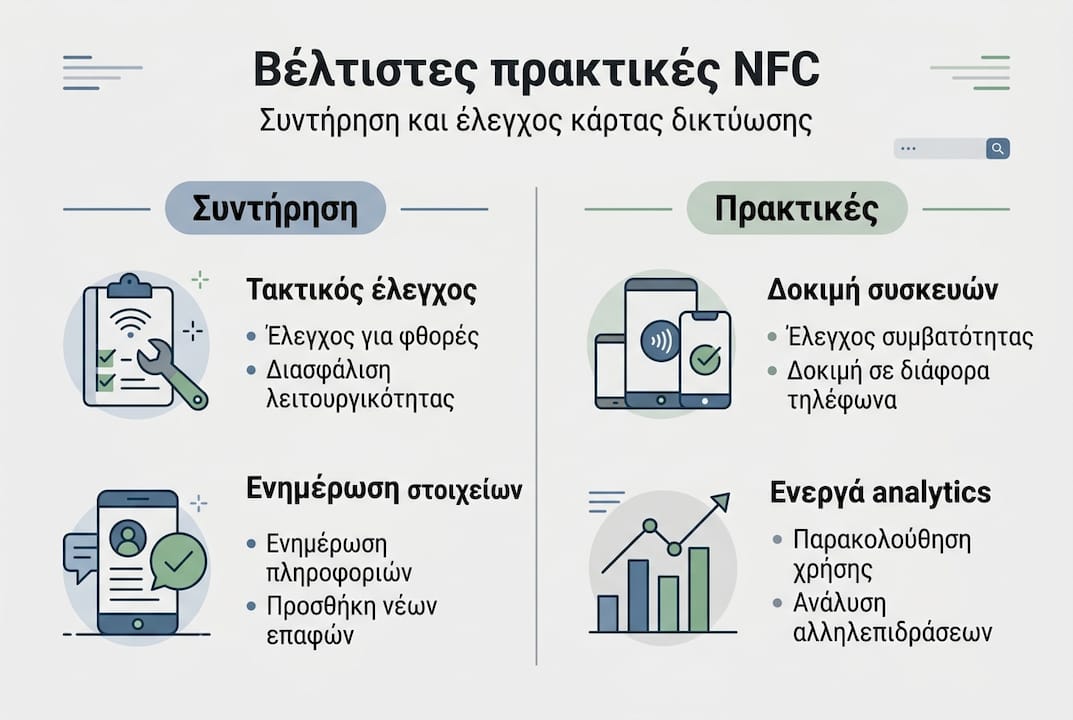
According to best practices for NFC cards, testing on multiple devices and regular profile updates are the most critical actions for long-term effectiveness. Also, disabling NFC, incorrect tap positioning, and metal interference are noted as edge cases.
Key verification steps:
- Test the card on at least 3 different devices (iPhone, different manufacturer Androids)
- Check that the URL opens correctly and quickly
- Confirm that the QR code scans correctly
- Check your profile for any errors or outdated information
| Best practice | Detail | Frequency |
|---|---|---|
| Testing on multiple devices | iPhone, Android, older models | Before each event |
| Update online profile | Details, links, photo | Every 1-3 months |
| Check URL | Must not have changed or expired | Monthly |
| QR fallback | Function in parallel | During creation |
| Tracking/analytics | Track profile visits | Weekly |
Maintaining your digital profile is essentially maintaining your card. If you change your phone, email, or job, you only update the online profile. The card remains the same. This is one of the biggest advantages over paper cards.
The benefits of professional networking with NFC cards include the possibility of tracking: you can see how many people visited your profile after a conference, what information interested them most, and when the visits occurred.
- Choosing a selection results in a full page refresh.
- Opens in a new window.